
DDS & images
Inspect textures, convert images and match the format your game expects.
Use the DDS viewer to inspect a texture before replacing it. Match the specific game or parent-mod file's dimensions, format and stored mip levels. A folder's common size is a starting point, not a requirement for every asset.
0.5.5 prerelease for 0.6.0: reference matching, full or custom mip counts and stored-mip preview are available in this preview. The stable 0.5.0 converter writes only the base image. See Upgrading for how to select the prerelease.
Preview a texture#
Hover a supported .dds path in script for an inline preview with dimensions and encoding. Resolution is mod-first, so an override shows your texture. An unresolved path has no preview; unsupported formats or the preview-size limit can leave file information without an image.
Open a .dds file in Explorer for DDS Preview. If you changed its editor association, use Open With > DDS Preview. Zoom with the mouse wheel, drag to pan, or use fit and recenter. The pixelated toggle uses nearest-neighbour scaling to inspect pixels; the preview background can be changed in Configuration.
Mip level selects a stored level and shows its dimensions. Zooming does not change the selected level. A base-only file shows No smaller mipmaps. The declared level count can still be shown when pixel decoding is unavailable; an invalid header shows an unknown count.
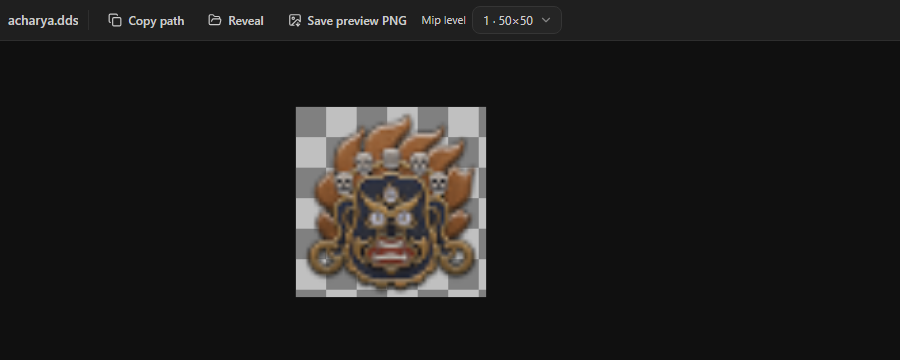
Copy path copies the game-relative texture path. Reveal opens the file's location. Save preview PNG exports only the displayed surface and selected level, with .mip-N.png suggested above level 0. It does not export or preserve a complete mip chain.
The viewer decodes DXT1/3/5, BC7 and supported uncompressed textures without external codecs. For arrays and cubemaps it shows the first slice or face. Volume textures, padded uncompressed rows and malformed chains can show a mip-preview warning while retaining a decodable base image.
Convert files or a folder#
Use Utils > Convert Images..., or PX: Convert Images... in the Command Palette. The file picker accepts several images. PX: Convert Image to DDS and PX: Convert DDS to Images... provide narrower paths. Explorer's PX: context actions also accept files or a folder; folder conversion asks whether to include subfolders.
- Select inputs and choose DDS, PNG, JPEG or WebP output.
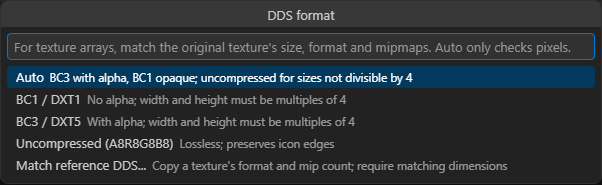
- For DDS, choose an encoding or Match reference DDS.... For JPEG, choose a white or black background for transparent pixels.
- For manual DDS encoding, choose the mip policy.
- Choose an output folder, or Beside source files.
Source images are preserved. Relative folders are kept when converting a folder into a separate output directory. Existing outputs offer Skip Existing or Overwrite Outputs; dismissing the notification stops the remaining batch. Cancellation keeps outputs already written. The result separates converted, skipped and failed files and provides failure details.
Replace an existing texture#
Choose Match reference DDS... and select the original game or parent-mod file. The reference stays read-only. Your input must already have the same dimensions; a mismatch fails without resizing or writing output.
Reference matching copies the compression format and exact mip count, including partial chains. It generates new mip pixels from your image. Supported references are classic DXT1, DXT5 and A8R8G8B8 single 2D textures. BC7, DX10 headers and other unsupported formats fail with an explanation, even if the viewer can display them.
Choose the format manually#
| Choice | Output |
|---|---|
| Auto | BC3/DXT5 when any pixel has alpha below 255, otherwise BC1/DXT1. Uses uncompressed output when either dimension is not divisible by four. |
| BC1/DXT1 | Compressed opaque color. The toolkit does not export BC1 transparency. |
| BC3/DXT5 | Compressed color with alpha. For packed masks, use the required reference format even if the picture appears opaque. |
| Uncompressed A8R8G8B8 | Four 8-bit channels without block-compression loss. Useful for crisp icons and other dimensions. |
The toolkit's BC1/BC3 encoder requires base width and height to be multiples of four. Explicit compressed output, including a matched reference, fails for other dimensions. This is a converter limit: CK3 ships compressed exceptions such as 535×615 and 1593×849. Use another texture tool for those replacements instead of resizing the artwork or changing its required format.
Choose mip levels#
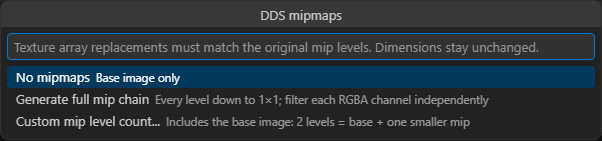
Manual conversion offers No mipmaps, Generate full mip chain and Custom mip level count.... The count includes the base image: 1 is base-only; 2 is the base plus one smaller level. A full chain ends at 1×1. A custom count applies to each image in a batch, and an excessive count fails for that image. Reference matching uses the reference count without another prompt.
Some interface textures have mipmaps, and some 3D masks have partial chains. The toolkit filters the four channels independently. It does not apply gamma correction, alpha-weighted color filtering or normal-vector normalization. Use a specialized texture tool when the asset needs these operations.
CK3 portrait and clothing masks#
Inspect the target texture under gfx/portraits/accessory_variations/textures/patterns/. In the inspected CK3 1.20.0.3 files, 512×512 pattern properties and normals have ten levels, but pattern masks have two levels, 512×512 and 256×256.
For example, byzantine/byzantine_silk_trim_03_masks.dds in that folder is 512×512 DXT5 with two stored levels. Choose Match reference DDS... with that file. The manual equivalent is BC3/DXT5, then Custom mip level count..., then 2. Other portrait masks can have different properties.
CK3 can assemble individual 2D textures into arrays. Members must match the target consumer's resolution, compression and mip count; inconsistent properties can produce texture-array errors and white textures. Auto cannot infer this contract. An actual multi-slice DDS array is a different resource: the converter rejects arrays, cubemaps and volumes rather than flattening them.
PNG input retains all four channels, including RGB under zero alpha. Prefer it for packed masks. PNG color profiles are not applied, and 16-bit inputs are reduced to 8 bits per channel. JPEG is lossy and has no alpha. Other inputs use browser decoding, which can discard RGB under transparent pixels. DDS-to-image conversion exports the base image and does not retain its compression or mip chain.
For the bounded mask migration recipes, see Game Version Compatibility.
Import a creator picture#
Custom picture uses the same DDS encoding, reference and mip choices. The first choices are uncompressed output and a full chain; these are form defaults, not requirements for every icon. Existing DDS inputs are copied without re-encoding.
The importer asks before replacing a picture and refuses a destination that changed while the prompt was open. Remembered folders belong to the selected mod. Linked folders outside that mod are rejected. See Content Creators.
Find asset guidance#
Run Paradox: Show Image Guidelines (sizes & formats), or open Wiki > Image Guidelines. This is a CK3 reference. It separates Sparc's community CK3 Graphical DDS FAQ from DDS headers inspected in CK3 1.20.0.3. It covers icon families, illustrations, emblems, portrait textures and the converter limits above.
The distinction matters. The FAQ gives 90×60 for innovation cards, while the inspected Crozier files use 180×120. Trait icons include both base-only files and seven-level chains. Culture tradition cards commonly use 545×285 uncompressed, while event scene backgrounds commonly use 1592×848 DXT1 with one level. Inspect the exact replacement rather than applying one policy to a category.
These header checks establish file examples, not in-game rendering acceptance. The DDS tools also work in Victoria 3 and EU5 workspaces; the CK3 asset guidance does not establish their requirements.
Keep the path exact#
Mirror the game-relative path inside the mod. For example, gfx/interface/icons/traits/my_trait.dds must match the trait's icon reference or default name lookup. Use forward slashes in GUI references, such as texture = "gfx/interface/icons/my_icon.dds". A correct DDS at the wrong path still cannot be loaded by that reference.